



Contact Us/ Claim your Space for free
To contact us for suggestions OR complaints OR to claim your space for free and to manage it yourself on giftiser.com, you can click here..
What is a Giftiser?
A Giftiser is similar to a gift coupon. It can be purchased from www.giftiser.com.
Who sells Giftisers?
Thousands of businesses (Sellers) publish their marketing information on www.giftiser.com and make Giftisers available for purchase.
Who is a Giftiser for?
Visitors (Buyers) can purchase and use Giftisers themselves or send them to other people (Receivers) as gifts.
How is a Giftiser used?
A Giftiser is a promise by a Business (the Seller) to the Buyer. When a Buyer buys a Giftiser from giftiser.com, and shows it to the Seller, the Seller allows the Buyer to make purchases from the Seller's store up to the value of the Giftiser. Alternatively, the Buyer can send the Giftiser to a friend or relative (Receiver), and the Receiver can use the Giftiser to make purchases from the Seller's store.
Businesses (Sellers) post the values of Giftisers that they intend to offer on their space on Giftiser.com. Buyers or Receivers can make purchases equal to the value of the Giftiser by showing the unique code given to every Giftiser. If the purchase costs more than the Giftiser value, the Buyer or Receiver pays the difference. If the purchase costs less than the Giftiser value, the Seller may or may not provide store credit or pay the remaining balance, depending on the Seller's internal policies.
Is Giftiser.com selling products?
No. Sellers do not sell products directly through www.giftiser.com. Giftiser is a platform for posting Giftisers. Businesses can also showcase their stores, categories, and brands, advertise flagship products, prepare price lists, publish menus, and receive customer feedback.
How to purchase Giftisers?
Follow these simple steps to purchase Giftisers:
- Browse Sellers: Visit www.giftiser.com and browse Sellers and their Giftiser offerings. Search by store name, city, country, category, brand, or other relevant information. Search text can be such as Coffee Tabuk, Pizza Tokyo, or Italian Oakville etc.
- Select a Giftiser: When you see the Seller of you like, select the checkbox for the Giftiser value you want to purchase. A Giftiser can be selected only when the Seller has posted an available Giftiser.
- Check the shopping cart: Open the shopping cart to see the number of Giftisers selected you selected to purchase and review the cart contents.
- Register or log in: Create a Buyer account or log in to an existing account. Then open the shopping cart again.
- Verify the amount: Review the total amount. Add or remove Giftisers as needed and update the cart.
- Provide Receiver information: Enter the name and email address of the person who will receive the Giftiser. You may enter your own name/ information. You may also include a personal message.
- Complete the purchase: Proceed to checkout and complete the purchase.
- Receive confirmation: The Buyer, Receiver, and Seller receive confirmation messages containing the Giftiser details and unique code. The same code is sent to all parties so that everyone has matching information.
- Redeem the Giftiser: After receiving the Giftiser Code, the Receiver can visit the Seller's store and show the email or message containing the Giftiser code and make puchases.
How to send a Giftiser to a friend?
Buyers can purchase Giftisers from a Seller's space on Giftiser.com and send them to friends or relatives by entering the Receiver's email address or phone number during the payment process. After purchase, email or SMS notifications containing a unique code are sent to the Seller, Buyer, and Receiver.
How to redeem a Giftiser?
The Buyer and Receiver can visit the Seller's store, show the message containing the unique Giftiser code, and make purchases up to the Giftiser value. This allows the Receiver to choose the gift themselves instead of the Buyer having to choose, ship, or deliver a specific product.
Who are Giftiser Buyers?
Anyone can buy Giftisers. Buyers must register and log in. Buyers may redeem Giftisers at participating Sellers themselves or send Giftisers to other people as gifts.
Who are Receivers?
Receivers are people who receive Giftisers from Buyers. They can redeem the Giftisers at participating Seller stores.
Who are Agents?
Anyone may become an Agent. Agents may register themselves from Agent Login screen. Agents are intermediaries who can assist Sellers, Buyers, and Administrators. Agents may meet Sellers/ Businesses, help them populate their Giftiser spaces, and publish Seller information after receiving approval from Giftiser Admin. Agents are responsible for entering accurate information that represents the Seller appropriately. Incorrect information may lead to complaints, legal issues, or harm to the Seller and Giftiser. Agents must act in the best interests of the Seller and the Giftiser portal. One agent may represent many Sellers/ Businesses.
How to write in Title Case?
All information on Giftiser is entered in Title Case. Title Case means capitalising the first letter of each major word while keeping minor words lowercase when appropriate. Examples include 'The Quick Brown Fox Jumps Over the Lazy Dog' or 'Mystery of the Missing Red Ruby'. Sentence Case is not recommended, such as 'Mystery of the missing red ruby'.
Who are Sellers?
Sellers are businesses and store owners who register, log in, and publish their business information on www.giftiser.com.
- The Seller must own a store or shop with a physical location where customers can walk in and purchase products or services.
- The Seller must be registered with the local authority and have a legal business document. Giftiser Administration may request proof of Company registration with local jurisdictions/ authorities.
- The Seller must have a logo representing the business.
- Online-only businesses are not eligible. Sellers post Giftisers for Buyers to purchase. When a Buyer or Receiver brings a Giftiser to the Seller's store, the Seller allows the holder to make purchases from that store up to the Giftiser value.
How to register a Seller?
- Visit www.giftiser.com and familiarise yourself with the portal.
- Review how Seller information is displayed on www.giftiser.com.
- Search for the Seller's company name from the search box at the top of the page to check if your Company is already published on the platform.
- If the Seller store is not found on Giftiser.com, click on the login icon on top right of the screen, click on Seller?, and then click on Seller Register?, if you do not already have an account.
- Continue with Seller registration as a new Seller. It is better to fill in all fields in the form. Fields marked with an asterisk (*) are mandatory. Different ways to fill the fields are given in the following sections.
- Register as Seller. An email will be sent to the provided email address with an activation link.
- Open the activation link sent to the email address. If the link does not work, copy the complete URL into the browser.
- If the activation link does not work or expires, request a new activation link from the login page.
- Once the account is activated, log in using the registered email address and password to access the Seller Dashboard.
- Giftiser admin has the right to verify the information provided, and ask for more details if necessary.
- Do not add businesses that are offensive, illegal, unfair, or likely to violate copyrights.
How to claim your space, if already published on giftiser.com as a Seller?
- Visit www.giftiser.com and familiarise yourself with the portal.
- Review how Seller information is displayed on www.giftiser.com.
- Search for the Seller's company name from the search box at the top of the page to check if your company is already published or not.
- If the company name is found with the correct location address and other details, do not register; go to Seller login screen and use the forgot password link with your company standard email address to receive an email with login credentials.
- Open the activation link sent to the email address. If the link does not work, copy the complete URL into the browser.
- If an email with login credentials is not showing in your inbox, check the spam folder.
- If an email with login credentials is not received, use the claim (fingerprint) icon on the Giftiser main page (under your published entry) to request access to the Seller Dashboard.
- Fill the form in the help section providing all necessary details and ask to claim the Seller space. Attach proof of ownership associated with your name or email address.
- Giftiser Support/ Administration will analyse the information provided by the seller in the claim form before approving access to the Seller dashboard.
- Login credentials will be provided upon approval via registered email address.
- If the Seller store is not found on Giftiser.com, click on the login icon, select Seller Login, and then choose Seller Register to create a new Seller account.
- Giftiser admin has the right to verify the information provided, and ask for more details if necessary.
- Do not add businesses that are offensive, illegal, unfair, or likely to violate copyrights.
Which language should be used?
Any language can be used to enter Seller information, as long as the same language is used for the name, address, catchphrase, and About Us section. Avoid using multiple languages for the same Seller profile. Categories, Genders, Ages, City, and Country names are selected from preset options and therefore remain in English.
How to enter a Seller's company name?
- Use Title Case to enter the Seller's company name (e.g. Mama Jinny's, Slim Chickens, or Optica Belvedere).
- Do not use symbols or periods or commas in Seller Company names unless they are part of the registered company name.
- Avoid duplication. Do not create another entry for the same Seller/ Company and the same store address. Read the warnings Giftiser provides carefully before proceeding.
- Register separately for every different store or branch of the same Seller/ Company/ Ownership with a different store address.
- Acceptable way of writing a Seller Company name with branch/ location information = SellerName - StreetName CityName. Do not write CityName before the StreetName.
- Note that there is no need to write the street or city with the Company name if the Company name is unique and also when it does not have any other branches.
- Seller's with multiple stores/ branches/ locations shall be differentiated with street names (or Mall name) while writing Seller's Company names (e.g. Mama Jinny's - Bloor St or Mama Jinny's - Bay St or Mama Jinny's - Shore Gardens)
- Note that the street name or mall name is added with an en dash, with a space before and after the en dash ( - ). Spaced dashes provide clarity, structure, and operational readability on websites.
- When different Sellers are using the same Company name, such as Mama Jinny's in Toronto and Mama Jinny's in Delhi the Seller's name shall be differentiated with street and city names (or Mall name) while writing Seller's Company name (e.g. Mama Jinny's - Bloor St Toronto & Mama Jinny's - Chandani St Delhi).
- When the same Seller Company has two stores on the same street then the Seller's Company name should be differentiated using the building number or Mall name. (e.g. Mama Jinny's - 27 Bloor St & Mama Jinny's - 234 Bloor St).
- While adding Street names to the Seller name, the word Street can be abbreviated as St, Avenue can be abbreviated as Ave, Highway 66 can be avvreviated as HWY66, Place can be abbreviated as Pl.
- Do not abbreviate names of streets or cities.
- The underlying purpose of following the above methods of writing Company names is to ensure that concise and quick results are provided to viewers when they are performing searches on Giftiser.com.
- Do not write words like Restaurant or Chinese Takeaway or Print Shop in the Seller's Company name field. These can be added as categories.
- Avoid adding unnecessarily long or irrelevant text in Seller Company name field.
- Use the official company name shown on the Business commercial registration certificate.
How to enter a Seller username?
- Usernames must not exceed 20 alphanumeric characters.
- Do not use capital letters, spaces, or symbols such as @, &, / or # in usernames.
- It is recommended to use a username that represents the Seller's Company name.
- Always add the number 01 as a suffix to the username so that more users can be added if required (e.g. mamajinnys01 and mamajinnys02).
How to assign/ enter a password?
- Passwords must not exceed 20 alphanumeric characters.
- Do not use spaces in passwords.
- Use a strong password and remember it rather than writing it down.
- It is preferred to use the password if one is suggested by the application.
- Ensure the password matches in the retype password field.
How to enter an email address?
- The primary email address is mandatory.
- No email addresses are published on Giftiser.com. They are used only for verification and ensure access to the dashboard.
- Use the required username-based email format when applicable (e.g. mamajinnys01@mamajinnys.com or mamajinnys01.giftiser@mamajinnys.com or info@mamajinnys.com).
- Provide an email address that is accurate and reachable.
- Secondary email address is preferred in case you lose access to the primary email address.
How to enter a country and city?
- Select the country name where the store is located. The same country should also be added to the address field.
- Select the city name where the store is located.
- If you do not find the city, you can select the nearby major city while keeping the address field accurate.
- Contact Giftiser Admin if you want to see a certain city in the select box.
How to enter an address?
- Use Title Case.
- Use an internationally acceptable address sequence and format (e.g. Building Number, Street Name, Neighbourhood, District, City, Province, Postal code, Country Name).
- Addresses should be accurate, relevant, locatable, and accessible using applications like Google Maps or Apple Maps.
- Addresses should be brief but locateable. Avoid writing names of locations or monuments near the store, behind the building, or names of roundabouts etc.
Examples:
101 Ventura Park Rd, Tamworth, Staffordshire, B78 3HB, United Kingdom
29 Pfeilstrasse, Cologne 50672, Germany
412 Greenwich St Unit A, New York, NY 10013, USA
How to enter a website address?
- Provide a complete URL such as https://www.mamajinnys.com. Do not enter the URL without the https:// or http://.
- If a website does not exist, provide links to social media spaces such as Facebook, Yelp, Tripadvisor, Instagram, or Trustpilot.
- If social media links are not available, provide a URL to Google Maps or Bing Maps such as such as https://share.google/2tEAnD1QRXVG1Ysfd.
- URLs for Seller branches should direct to the page showing the branch information, such as https://stores.sainsburys.co.uk/4873/bath-southgate-local
- All URLs should be accessible without errors.
How to enter a phone number?
- All phone numbers should be provided with + or 00 country code such as 0096653142345 or +96653142345.
- Phone numbers should be accurate for the store and reachable.
- In case of Sellers with multiple branches, a universal number, unified number, or individual number for every branch should be provided.
- Provide a secondary phone number if available.
- All phone numbers are visible to customers on giftiser.com.
What is a catchphrase?
A catchphrase is a slogan or motto created by the Seller. It is usually a brief key message expressed in a few words. A catchphrase should not exceed 15 words. If a catchphrase is not established by the Seller, an appropriate and relevant key message posted on the Seller's website or social media can be used. Sellers should ensure that appointed Agents do not fabricate catchphrases incorrectly.
Examples are given below:
| Brand | Catchphrase / Slogan |
|---|---|
| Nike | Just Do It |
| McDonald's | I'm Lovin' It |
| Tim Horton's | Always Fresh |
| Apple | Think Different |
| L'Oréal | Because You're Worth It |
| Wendy's | Where's the Beef? |
| BMW | The Ultimate Driving Machine |
| KFC | Finger Lickin' Good |
| Subway | Eat Fresh |
| Coca-Cola | Open Happiness |
What is About Us information?
- Most businesses have an About Us section on their websites or social media pages which can be used to fill the Seller's About Us field.
- Provide information that helps the viewer understand more about the Seller's nature of business, experience, specialisation, and extraordinary offers.
- Avoid adding phrases like 'Welcome to our store', or providing the address in the About Us section.
- Sellers can add references to nearby important places and names of main intersections or attractions to facilitate customers.
How to add standard working hours?
- It is mandatory to provide accurate working hours.
- During Seller registration, provide standard working hours and standard closing hours for most weekdays.
- Use 24-hour format such as 0900, 1800, or 0000.
- After registration is complete with verification, detailed working hours with breaks and holiday schedules can be provided from the Seller dashboard.
What is the need to add owner's name or supervisor's name?
- Owner's name is not mandatory.
- Location supervisor's name is not mandatory.
- Adding these names will help Giftiser Admin address the appropriate person in case of problems with the registration or published data.
How to add Seller logo?
- Adding a Seller logo is mandatory.
- If a Seller logo is not available, a clean picture of the store front or interior or a signature product can be provided.
- Provide a sharp, crisp and good quality logo that represents the Seller accurately.
- Ensure that the logo is appropriate, relevant to the Seller's business and not offensive.
- Do not show store address, phone number, or customer pictures in the logo.
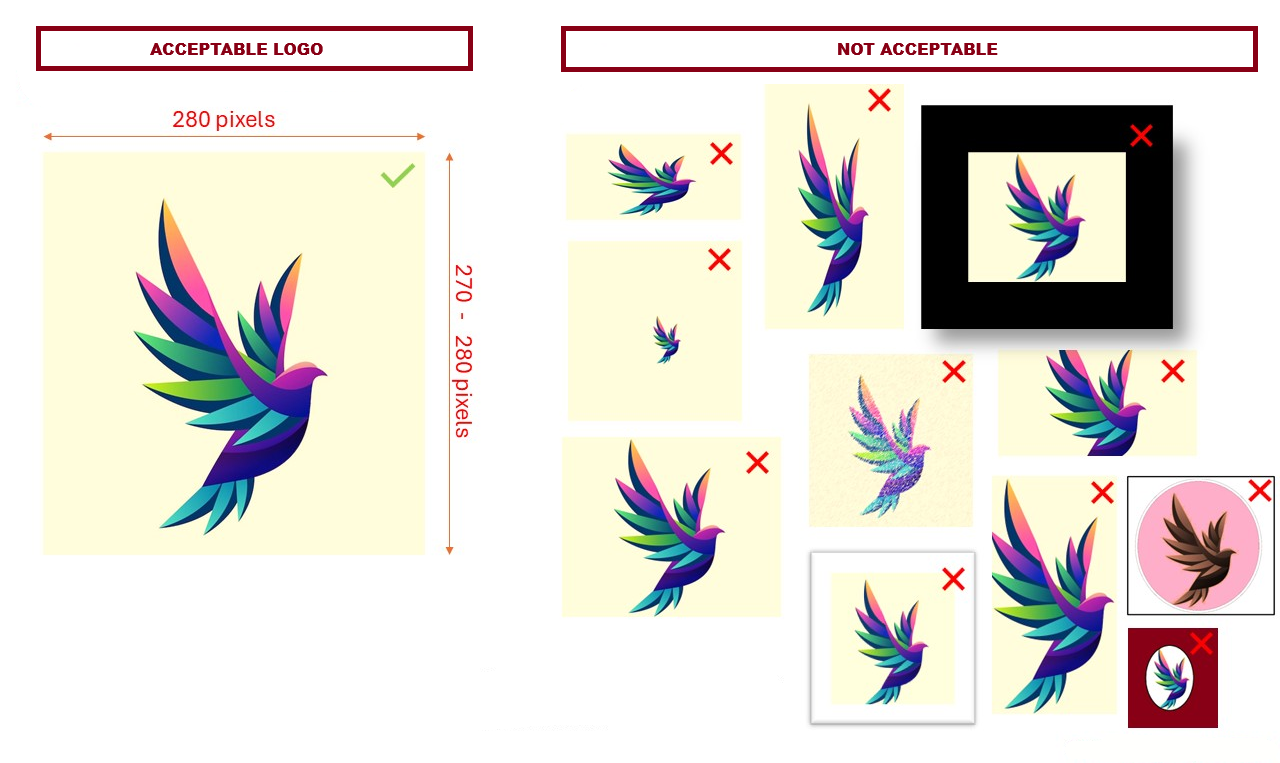
- Ensure that the logo is relevant and has the proportion intended and AS shown by the Seller on websites or social media pages.
- Do not elongate, stretch, or distort the logo.
- Do not place logos in circles if not intended in the Seller's trademark.
- Logos should be exactly 280 pixels wide.
- Logos should be contained to 270-280 pixels in height.
- Logos should maintain their aspect ratio and not be distorted when resized.
- Logos should not overflow from the container provided on the Giftiser main page.
- Logos should not be too small such that a large space around it is empty.
- More information about the quality of logos and best results can be seen below differentiating between acceptable and non-acceptable logos.
How is Seller currency chosen?
The Seller currency is tied to the country name and is automatically chosen when the Seller selects a Country during Seller registration.
Why is it important to protect and provide accurate information?
- Providing inaccurate, wrong, fraudulent, or deceitful information or data will harm the Seller's reputation.
- Customers will lose faith and interest in the Seller or business.
- The easy and best way to ensure accuracy is to open the help page in a side-by-side window and scroll with the relevant fields of the registration form.
- Copying, extracting, scraping, reproducing, reusing, or redistributing data, text, images, or other content from Giftiser.com is not permitted without prior written permission from Giftiser Administration, whether done manually or by using automated tools, bots, scripts, scraping software, artificial-intelligence systems, or other technology.
- Seller information must be entered and uploaded manually by an authorised person. Bots, scripts, automated upload tools, scraping software, artificial-intelligence agents, and other automated systems must not be used to create, submit, or update Seller information.
- Providing deceitful, wrong, or fraudulent information will harm Giftiser website's reputation and may result in legal actions against Giftiser Administration. Sellers and Agents are encouraged to familiarise themselves with the terms and conditions of giftiser.com. Sellers and Agents are also encouraged to familiarise themselves with the privacy policy of giftiser.com. Sellers and agents are also encouraged to familiarise themselves with the legal codes, acts, laws and regulations in their country against cybercrime, electronic crime, computer fraud, data misuse, and anti-privacy practices.
- Giftiser Admin has the right to deactivate Seller, Buyer, Agent and Receiver accounts in case of violations of the terms and conditions, fraudulent activities, or any actions deemed harmful to the platform. Giftiser Administration also has the right to seek legal actions against violators.
What does publishing a Seller mean?
- After registering and verifying login credentials, the Seller can log in to the Seller Dashboard and provide the information required for publication on Giftiser.com.
- Provide complete and appropriate information so visitors can understand what the Seller offers.
- A Seller can be published on Giftiser.com only after providing the following mandatory information:
- All business-related categories
- Manufacturer brands carried by the store
- Age groups served
- Gender groups served
- Weekday hours, weekend hours when different, and break hours when applicable
- Company logo
- Company catchphrase, motto, or slogan
- City and country of the store
- Exact store location and address
- Phone number
- Currency
- After publishing the profile, check the main page to confirm that the Seller entry looks correct.
How to access the Seller Dashboard?
- Use the Seller username and password on the Seller Login page.
- The dashboard shows Seller Profile, Image Gallery, Categories, Brands, Ages, Genders, Hours, Giftisers, Prices, Promotions, Social Media, Earnings, Asks, and Reviews.
How to edit or update the Seller profile?
- Use the Seller username and password on the Seller Login page.
- Use the PROFILE tab to update information. Some information, such as the company name and username, cannot be changed.
- Publish the Seller profile again every time you make a change to the profile.
How to add logo or pictures to the Seller gallery?
- Logged-in Sellers can click on the GALLERY tab to upload or update logos and images.
- A crop tool is provided in the application to ensure that the logo meets the required size.
- Ensure that all logos and pictures are clear and of web quality and the resolution is not less than 72 dpi.
- Giftiser.com allows to add as many gallery images as intended by the Sellers.
- There is no restriction to the size, resolution, or alignment for the gallery pictures.
- Gallery pictures can be added by pressing Ctrl+V if they exist in the clipboard.
- Sellers are encouraged to add gallery images that describe their ambience, products, and services.
How to assign Seller categories?
- Logged-in Sellers can click on the CATEGORIES tab to select relevant categories.
- Select every category that accurately describes the Seller's products or services.
- Always select the primary category. For example, Restaurant may be the primary category, while Seafood or Italian Style may be secondary categories.
- Do not select irrelevant categories.
- You can add more than one category.
- Categories are provided to show the Seller's sellable or offered products and services. For example, a restaurant may have kitchen equipment on location, but it does not sell kitchen equipment; it only sells food, so adding Kitchen Equipment to the Seller profile would be wrong.
- Add categories like Free WiFi, Free Parking Available, Pet Friendly, Sustainable, etc., only if the Seller has explicitly advertised them.
How to assign brands?
- Logged-in Sellers can click on the BRANDS tab to select relevant brands.
- The purpose of adding brands is to help visitors understand what they can find in the store.
- Add important, recognisable brands carried by the Seller.
- You can add more than one brand.
- Around 20 useful brands is generally sufficient.
- Do not select irrelevant brands or brands which are not explicitly advertised and offered by the Seller.
- Examples of brand types:
- Manufacturer brands: Nike, Adidas, Apple, Samsung, Sony, L'Oréal
- Designer brands: Ralph Lauren, Tommy Hilfiger, Michael Kors, Calvin Klein
- Retail brands: H&M, Zara, Gap, Uniqlo
- Private-label brands: Kirkland, Great Value, Sephora Collection
- Licensed brands: Disney products, NFL merchandise, Harry Potter products
- Self brand: The business name of a restaurant, insurer, or service provider
How to assign genders?
- Logged-in Sellers can click on the GENDERS tab and select the groups for which the Seller offers products or services.
- It is mandatory to provide at least one relevant gender group.
- All genders can be added if applicable.
How to assign ages?
- Logged-in Sellers can click on the AGES tab and select the groups for which the Seller offers products or services.
- It is mandatory to provide at least one relevant age group.
- All ages can be added if applicable.
- Ensure to add legal drinking age or legal smoking age, where necessary.
- You can add more than one age group.
How to assign Seller detailed working hours?
- Logged-in Sellers can click on the HOURS tab and enter working hours for weekdays and weekends.
- Different working hour groups can be added if necessary.
- Provide working hours in 24-hour format.
- If the store is closed for lunch or prayers, break hours can also be added.
- Ensure to show if the store remains open during public holidays.
How to publish the Seller profile?
- After assigning Categories, Brands, Ages, Genders, and Hours, open the PUBLISH tab and review the information.
- Select Publish or Update. The Seller profile must be republished after any changes are made.
How to post Giftisers?
- Logged-in Sellers can click on the GIFTISERS tab and enter information about the Giftisers they want to sell.
- Posting Giftisers is optional and not mandatory for publishing the Seller profile on Giftiser.com.
- If the Seller dashboard does not show Giftiser Admin approval to post Giftisers, request approval from Giftiser Admin.
- After approval, enter the Giftiser values, quantities, and fees as desired.
- Posted Giftisers will show under your logo as checkboxes on the Giftiser website.
How Sellers receive payments for sold Giftisers?
Open the Payments section at the bottom of the profile page. Select one payment method and complete only the fields related to that method. Unrelated information may delay payments.
How to post Seller prices or menus?
- Logged-in Sellers can click on the PRICES tab to enter information about the products they sell.
- Posting prices is optional and not mandatory for publishing the Seller profile on Giftiser.com.
- Sellers may publish menus or price lists.
- Create a title for the price list, then add products or services and their prices.
- Sellers cannot sell products on Giftiser.com. These prices are posted for information to customers only.
How Sellers advertise promotions?
Promotions are optional. Use the PROMO tab to post featured products, services, discounted products, or special offers. A maximum of four products may be posted.
Complete the applicable fields:
- Brand or make of the product
- Model number
- Additional product information
- Condition, such as New, Not New, or Vintage
- Gender for which the product is suitable
- Age group for which the product is suitable
- Country of manufacture
- Year of manufacture
- Colour
- Currency
- Selling price
- Previous or reduced price
- Stock status
- Stock quantity
- Country where the product can be purchased
- Product description
- Up to four product pictures; files should be no larger than 1 MB and PNG is preferred
- Up to four other products with name, selling price, previous price, and condition
- Additional business pictures, each no larger than 1 MB when possible
- Acknowledgement that the information is accurate, not fraudulent, and suitable for all ages
SAVE button stores the information without posting it. VIEW button shows how the Seller's Promotions page will appear. POST button publishes the saved information for visitors.
How to advertise Seller social media links?
Click on the SOCIAL tab to add social media links. Social links are optional. Add links to Facebook, TikTok, other social profiles, websites, awards, special mentions, and mobile applications.
How to view Seller earnings?
The EARNINGS tab shows details of sold Giftisers.
How to view questions from customers?
The ASKS tab shows questions submitted by visitors.
How to view customer reviews?
The REVIEWS tab shows visitor reviews and allows Sellers to respond.
How to view reservation requests?
Visitors can request reservations from the Seller space. Reservation requests appear in the RESERVATIONS tab. Sellers can acknowledge requests by contacting visitors directly.
How to log off?
Click the LOG OFF button when finished working on the Seller Dashboard.
Privacy Policy
Your privacy matters to us at www.giftiser.com. We are committed to protecting personal information and explaining how it is collected, used, and safeguarded.
Information we collect
We collect information voluntarily provided when registering as a Buyer, Seller, or Agent, including names, email addresses, phone numbers, business details, and payment information.
How we use information
Information is used to facilitate Giftiser transactions, process payments, send confirmations, verify Seller accounts, respond to enquiries, and improve services.
Data sharing
We do not sell personal information to third parties. Information is shared only with parties involved in a transaction and payment processors needed to complete purchases.
Email communications
When a Giftiser is purchased, the Buyer, Seller, and Receiver receive transaction details and unique codes. Users may opt out of marketing emails but will continue to receive transactional emails.
Data security
No internet transmission or electronic storage method is completely secure. We take reasonable steps to provide secure services, but users understand and assume the risks associated with internet activity.
Password security
Users are responsible for protecting passwords, user IDs, and other authentication details. Accounts may be suspended without notice while a suspected security breach is investigated.
International data transmission
By providing personal information through www.giftiser.com, users consent to its transmission across the internet or international borders when necessary to process the information according to standard business practices.
User-generated content
Users post information, reviews, questions, and other details at their own risk. Giftiser.com is not responsible for information that users hide, falsify, or use to mislead others. Users are responsible for the information they post or share.
Cookies
We use essential session cookies to maintain login state, support shopping cart functionality, and operate the website. These cookies do not track users across other websites. No analytics or marketing cookies are used on the platform.
Third-party links and content
The website may link to third-party websites, including Seller social media profiles. Giftiser.com is not responsible for the privacy practices, quality, or content of external websites. Links are provided for convenience and do not imply endorsement.
Information accuracy
Information on www.giftiser.com is provided as is. Much of the information is submitted by third parties and Giftiser does not control or verify everything that is submitted. We make reasonable efforts to include accurate and current information but do not warrant its accuracy or completeness. Information may be reviewed, changed, improved, or updated without notice.
Limitation of liability
Giftiser.com is not liable for damages suffered by users, including incidental, special, or consequential damages resulting from access to, use of, or inability to use the website, or from security breaches associated with internet transmission.
Data retention
We retain personal information while an account is active or as needed to provide services. Users may request deletion of their account and associated data.
User rights
Users may request access to, correction of, or deletion of their personal information. Users may also contact us with concerns about how their data is handled.
Children's privacy
Our services are not intended for people under 18. We do not knowingly collect personal information from minors without parental consent.
Changes to this policy
We may update this privacy policy from time to time. Changes will be posted on this page with an updated effective date. Continued use of the services constitutes acceptance of the updated policy.
Contact us
For privacy questions or concerns, use the help form at www.giftiser.com or email giftiser.privacy@one-ppm.com.
Last updated: September 2026